Welcome to tazti online help. This page is divided into two sections: (1) Help and instructions for installation and setup, activation, and a basic guide for operating tazti and (2) frequently asked questions. For a detailed guide to operating tazti, please refer to the help file included within tazti.
Click here to skip basic help and instructions and go to frequently asked questions
Tazti 3.2 Features
- Control your favorite MMORPG or other PC games by talking to your PC. Works simultaneously with keyboard and mouse use. WOW, Guild Wars, Eve, Runescape etc.
- Control your favorite applications such as Photoshop, Gmail, Outlook, etc. by talking to your PC
- Create up to 300 of your own speech commands to open websites, folders, files, run programs, and run a program with command line parameters
- Change your Mouse configuration from right handed to left handed & back
- Open your calculator by voice
- Open your Media Player by voice
- Open windows explorer by voice
- Open your control panel by voice
- Open your screeen display by voice
- Many included desktop navigation and control speech commands
- Works with US English, UK English, Canadian English and Australian English
Tazti speech recognition software is designed to substantially reduce the number of keyboard keystrokes and mouse clicks you would normally make while using your PC. Ultimately fewer keyboard keystrokes and mouse clicks mean less stresses on your fingers, wrist, forearm and hand in general, and a more enjoyable computing experience.
tazti utilizes an innovative speech recognition software design which when installed correctly allows your PC to recognize your voice and any spoken speech commands that you may speak. Your speech commands trigger actions on your PC. Examples include: saying the speech command “mouse click” which causes the mouse to click wherever you have the cursor pointing on your screen. Saying the speech command “mouse double click” causes the mouse to double click wherever you have the cursor pointing on your screen. Saying the speech command "go calculator" causes the calculator to open up onto your screen so you can use it to make calculations.
Thank you for downloading tazti. If you like this application, help us out and tell your friends. Contact us with comments, feedback and suggestions. See our forum at www.tazti.com for more info. [email protected]
Best Wishes,
team tazti
Voice Tech Group, Inc.
Installation Requirements
Before you install tazti, make sure that your PC meets the following requirements:
- tazti only works with Windows 7 (64-bit) and Windows 8 (64 bit).
Please make sure you are running the a compatible version of Windows.
- PC with 1.5 gigahertz (GHz) or higher processor* (Intel Dual Core, Core 2 Duo, i3, i5, i7 or AMD compatible processor recommended)
- 1 gigabyte (GB) of RAM or higher
- 1.5 gigabyte (GB) of available hard disk space.*
- Super VGA (800 × 600) or higher resolution video adapter and monitor
- Keyboard and Mouse or compatible pointing device
- A microphone (headset preferred) that you can plug into the mic jack of your computer
Even though many new Laptops/Notebooks/Netbooks now come with built in array microphones, we've found through our testing that you will get best results by using either a standard plug-in headset microphone or a USB microphone. Most headset microphones come with speakers attached to the headset, making it useful for also listening to audio/music.
*Actual requirements will vary based on your system configuration and the applications and features you choose to install. Additional available hard-disk space may be required if you are installing over a network.
Installation And Setup
Installation of tazti is very straightforward in most cases. tazti is available as a .zip (file type)download.
Begin Download and Installation
Unzip (extract) the download to a directory, then navigate to that directory and double-click on the file "setup.exe". Windows 7/8 has built in software that will allow you to unzip (extract or de-compress)a .zip file. (Note: tazti is not available on CD.)
- tazti will perform a pre-install check to insure several components are installed before proceeding. If these components are not already installed, you will be asked to install them. Go ahead and agree to allow their installation as tazti will not install unless these components are installed. these components are: Microsoft Kinect Runtime, the Microsoft .NET framework, and related items.
- After the pre-install check is passed, and all required pre-requisites are installed, tazti itself will begin to install. You will see a window title “Welcome to tazti Setup Wizard”. Click the “Next” Button on this window.
- Another new window pops up, named “License Agreement”. This is your User’s License agreement with the manufacturer of tazti. Please read the License agreement in its entirety. If you agree with the License agreement click in the small circle labeled “I Agree”. NOTE: If you do not agree or do not accept the License agreement, the software will not install and you will not be able to use it. This window appears every time you install the software. Click the “Next” Button on this window.
- The next window of the Setup Wizard to appear shows you into which file folder tazti software will be installed. If you are an advanced user you can change the file folder, but new users should click the “Next” button on this window.
- The next window of the Setup Wizard to appear “confirms” you are ready to load/install tazti. Click the “Next” button to continue.
- tazti runs through a series of short processes to install the software. You can watch the progress on a horizontal bar in the window. This may take a moment or two.
- The installation process completes. You have now successfully installed tazti software. Click “Close” to exit the Setup Wizard.
Running tazti
Double Click on the tazti icon or tile in either the start list or start page and tazti will startup. An introduction window will appear to tell you that tazti is starting. This will disappear after 4-10 seconds, then the main Control Window (dashboard) for tazti will appear.
Activating and Deactivating tazti
What is activation and why should I activate tazti?
Activation is what we call the process of licensing and enabling tazti so that you can use its features. Some versions of tazti may incorporate a 15 day free trial period. At the end of the 15 day trial period, tazti will lock and ask you to purchase a license to unlock it. Other versions of tazti may not have a 15 day free trial period and may require activation during first use. You don't have to wait for the trial period to expire to enter your Order # and activate tazti.
What do I get by purchasing a license and and activating tazti?
You get a license that lets you use the features of tazti on two different computers. You can use both licenses yourself, on two different computers, or can you can share one or both of the licenses with family and friends so their computers can use the features. This is called a floating license.
Why would I want to deactivate tazti (and what is a floating license, anyway)?
There may come a time where you want to move tazti to a new computer, or you may want to change the operating system on your computer but still use tazti afterwards. The 'deactivation' feature makes this easy to do. Just deactivate tazti, which frees up one of your two licenses. You can take the free license and activate a copy of tazti on a different computer, or activate tazti on the same computer after you've installed a new operating system and re-installed tazti.
This is called a floating license, because the licenses float with you, and you can control or move the licenses from one machine to another. You can activate any number of computers or move tazti from machine to machine as much as you want as long as the number of activated copies of tazti at any given moment does not exceed the number of licenses you purchased.
Where do I go to upgrade, activate or deactivate tazti?
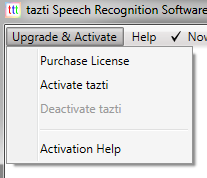
The image below show the menus where you can upgrade, activate or deactivate tazti.
How do I purchase an upgrade?
Click the 'Purchase License' menu (see illustration above). This takes you to the tazti website where you can purchase the upgrade.
How do I activate tazti?
Once you have purchased a license to activate tazti, you will receive an email from tazti. You will want to print out or otherwise backup this email as it co ntains the infromation you will need to use to activate tazti. Look for the part of the email looks something like this:
To activate tazti You will need the order number and contact email listed below.  For details on how to activate tazti, visit http://www.tazti.com/activation.html.

                Your Order Number: ZBT-13G30492DV6236334M
                Your Order Email: my_email_address@my_email_service.com
The email address you entered when you purchased tazti will appear as your Order Email, and a unique sequence of numbers and letters will appear as your Order Number. You need these two pieces of information to activate tazti so print out this email or write the Order Email and Order Number down.
Open tazti, click on the "Upgrade & Activate" menu, then click the "Activate tazti" menu. This will open a new screen that looks like the screenshot below:
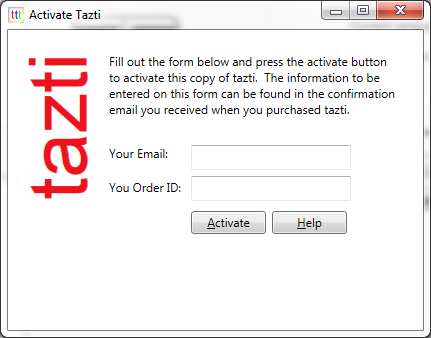
Fill out the screen with your Order ID and Order Email. It will look something like this (but with your information instead of the information from our example email):
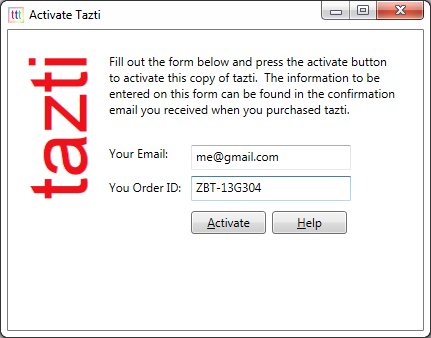
Click the "activate" button. tazti will let you know if the activation is successful or if there was a problem. If the activation is successful, then you're done! You can immediately begin using tazti's features again once you've activated it, even if your version had a 15 day trial that had expired.
Use the same Order Number and Order Email to activate as many computers as you have licenses for. Normally you get two licenses for tazti with each purchase, so each combination of Email and Order Number can activate up two computers simultaneously.
Note: Once you activate tazti, the 'Activate tazti' menu will be greyed out, but the 'Deactivate tazti' menu will be un-greyed.
How do I deactivate tazti?
On the main dashboard of tazti, click the 'Upgrade & Activate' menu, then click 'Deactivate tazti'. tazti will popup a message to let you know when your computer has been deactivated.
After you've deactivated a computer, you can always go back and reactivate it using the instuctions for activating tazti.
Note: 'Deactivate tazti' menu will be greyed out until you activate tazti. Once tazti is activated, this menu will be un-greyed, and the 'Activate tazti' menu will be greyed out.
Using tazti
Using tazti will help you eliminate thousands and thousands of keyboard keystrokes and mouse clicks in a year.
tazti will open websites with Internet Explorer, Firefox, and Google Chrome. In general, when tazti tries to open a website, it will try to open it with whatever browser is set as your default browser.
Using tazti is straightforward: simply speak a speech command and tazti will recognize your voice and perform the action associated with that command.
This is an overview of how tazti works - please see the help included within tazti for a comprehensive list and details of its features.
Be sure to plug your microphone into your PC before you begin. We recommend a headset microphone as tazti speech recognition works best when the microphone is one inch from your mouth and always in the same location relative to your mouth.
For installation questions go to the "Installation and Setup" help page.
When you turn tazti on, the "Welcome to tazti" splash screen will open for a few seconds. The Welcome screen just lets you know the program is starting up. If you have your speaker sound on, you will hear someone say "Welcome to tazti". When the tazti program is fully loaded, the application will open its main window which we also call a "dashboard". Let's take a minute and examine what's available to you on the dashboard.
Menus - Horizontally across the top of the tazti platform you will see a listing of menu items.
- Upgrade & Activate: You can buy a license and activate tazti
- Help: Opens the help file, plus various links to helpful tazti related websites
- Now Using PC Mic: Allows you toggle back forth between using a headset mic and Kinect For Windows. By default, tazti will use the PC Mic. The Kinect For Windows feature is experimental and requires that you have the Kinect For Windows hardware, purchased separately.
Buttons - On the left side of the dashboard.
-
Hide tazti: Clicking here causes the "Control Window" (dashboard with the tazti logo) to minimize itself (in Windows 7 or Windows 8 Desktop Mode) to the blue-colored task bar on the bottom of your screen. tazti is still functioning in the background but the window is physically out of the way of your desktop. There are three ways that you can make the Control Window re-appear:
- speaking the speech command "show tazti "
- clicking on the open program button on the blue task line on the bottom of the screen with the title " tazti "
- right clicking the mouse when the cursor is over the tazti icon in the system tray and selecting "show tazti "
- Help: Opens the tazti help file
- Quit tazti: Clicking here causes tazti to shutdown and close. The computer continues to run normally but without tazti speech recognition functionality. You will not be able to use speech commands again unless you start tazti agai
- International Button: Clicking this button opens up a window where you can change the language tazti listens for. Many users will only have US English, or US English and one other language or English Dialect available on this screen. Your options will depend on your PC's configuration and what components were installed by tazti
Listening/Not Listening Button
On the left side of the dashboard above the buttons you will see the word "Listening"
in green color or "Not Listening" in red color. This is actually a toggle button. If you place your mouse over it and click you can toggle between "Listening" mode, where tazti is active and listening to what you say; versus clciking again and going into "Not listening" mode, where tazti is muted and not listening to what you say. In addition the speech command "mute microphone" will cause tazti to go into "Not listening" mode and the speech command "activate microphone" will cause tazti to begin "Listening" again. You can use the speech commands interchangably with clicking the button. Remember tazti is always listening when it is in "listening" mode. If someone talks to you, it will hear them also and try to interpret their words into speech commands. If the radio or tv is running in the background, it may try to interpret that into speech commands. We always forget to turn tazti off when we get phone calls and it hears that also and tries to interpret what we say into speech commands. Therefore we recommend that when you are not using tazti or get interrupted by a phone call or people talking to you, place it into not listening mode. In general tazti should be used in as quiet a location as possible.
Tabs
In the center section you will see 3 tabs from left to right across the page. They are labeled: Custom, Control Games/Applications, and Options. Each tab has it's own help topics. For detailed instructions refer to the help sections for each tab.
Here are some "Tab" guidelines:
- tazti in general, was created to reduce/eliminate keyboard keystrokes and mouse clicks as well as have fun. Therefore we've included the speech commands "Mouse Click" and "Mouse Double Click". You use these commands by moving your mouse and related screen cursor as normal to point at what you want to click. But instead of physically clcking with your hand, you say the speech command "Mouse Click" or "Mouse Double Click" into your microphone and it triggers the click ot double click action. The "Mouse Click" and "Mouse Double Click" speech commands are located on the Custom tab along with other Operating System related speech commands.
- Wherever you used to right click to bring up the context menu you can now use the speech command "Context Menu" to bring up the context menu related to where the cursor is pointed. (The context menu typically appears when you click the right button on your mouse when it is set as a right-handed mouse. The context menu has a different list of actions or info in it based on the application you are using, and not every application has context menus.) You should experiment with the "Mouse Click", "Mouse Double Click" and "Context Menu" speech commands to see how they work. What they do varies depending on what the mouse cursor is pointing at.
- In Windows, only one program at a time is considered the “active program”. You can tell which it is because its title bar (across the top of the window) is a brighter blue than any other open programs and it's button (along the bottom of the screen in the task bar) is the only button depressed in the task bar. Minimizing the active program hides it from view, and changes the button along the bottom of the screen in the task bar so it is no longer depressed, and makes a different program active.
- A group of custom speech commands will function no matter what the active window is and no matter where the mouse cursor is pointed. These commands are “Start Menu”, “Go Calculator”, “Media Player”, “Go Windows Explorer”, “Go Control Panel”, “Go Display Panel”, “Hide tazti”, “Show tazti”, “Quit tazti”, “Get Help”, "Mute Microphone", and "Activate Microphone".
- Say the speech command “Close Window” and tazti will close whatever is the active window, including tazti. Let me say that again in a different way. If tazti is your active window... and you say “Close Window”, then tazti will perform the first task to closing itself. It does give you the option to cancel the “Close Window” action. Experiment with the speech commands to find out what they do!
- Remember that when you use tazti, you will still use the mouse to move the mouse cursor/pointer around the screen. The list of speech commands lets you remove most of the keyboard keystrokes and mouse clicks that people have to perform during standard usage of their computer. In some cases you could save 100's of thousands of keystrokes and clicks a year! To start tazti click on the tazti icon on your desktop.
Quit Tazti
There are three ways to quit tazti:
- Quit tazti button - on the left side of the dashboard. Click it to close tazti.
- Speech Command "Quit tazti" - say the speech command and it causes tazti to close.
- Red X - You can always click the red X in the upper right of the window, just like any other window.
Some key things you need to know about tazti
- tazti only works with Windows 7 (64-bit) and Windows 8 (64 bit). Please make sure you are running the a compatible version of Windows.
- Some versions of tazti may incorporate a 15 day free trial period. At the end of the 15 day trial period, tazti will lock and ask you to purchase a license to unlock it. Other versions of tazti may not have a 15 day free trial period and may require activation during first use.
- A microphone is required to use this software. We recommend a headset microphone as this controls the distance from your mouth to the microphone allowing for better hearing by the microphone. PC’s usually have a microphone plug built into them. Usually the PC manufacturers place an image/picture of a microphone by the correct plug on your computer. Check at your local computer or electronics store if you need a microphone headset for your PC. Speakers are not required and do not need to be a part of the headset, but most headsets come with speakers as well as the microphone making it easy to listen to music while at a cafe working on your PC. Some Laptops also come with built in array microphones, but headset microphones will give you the best results.
- Of course you must have a mouse or touch pad on your system. tazti allows you to set your mouse for left-handed use as well as the normal right-handed use. See the "Options" tab for this. You can always, manually click the mouse with your hand even when tazti is functioning. Your choice, hand or speech command!
- Please note that versions of Zone Alarm brand and some other firewall software may be programmed in such a way that you cannot use tazti to make any clicks while adjusting the controls within and directly affecting their firewall software. Adjustments to Zone Alarm will need to be made in the normal method of using your hand and mouse to make clicks. If you activate Zone Alarm pop up notifications, you will have to close any pop up notification by clicking the mouse by hand. Deactivating the notification function in Zone Alarm does not affect the integrity of the Zone Alarm operation. You can always turn the notification function on later.
- When using Microsoft's Vista operating system you MUST have your microphone headset connected to the PC BEFORE you open tazti. Iif you unplug your microphone headset while tazti is running and then later plug the microphone headset back into the PC, the PC may not recognize the microphone headset.... therefore tazti won't recognize you speaking. This can be solved by closing tazti and reopening the application with the microphone headset plugged into your PC.
Tech Support
For help with issues not covered in the FAQs, please refer to the detailed help within tazti or email us at: [email protected]
Common Questions
Click here to return to basic help and instructions
FAQ - Using tazti's NEW Features
Q. Can I really play a video game using tazti and my voice?
A. Yes - it's true! tazti even comes already set up to let you control and play World of Warcraft, out of the box. Want to control games besides WoW? You'll need to spend a couple of minutes to setup tazti - but it works with virtually any game or even programs such as Photoshop.
See the FAQ section 'About tazti & Video Games' for more details.
Q. Does it work with Ventrilo VoIP Chat?
A. Yes, and it's very easy to setup. Set Ventrilo to work with Push-To-Talk mode. Add a keybinding to your tazti gaming profiles that trigger the Push-To-Talk key setup in Ventrilo.
Q. How do I get more game profiles?
A. tazti includes a gaming profile for World of Warcraft. You can create gaming profiles for other games or programs through the game/application tab. You can also download pre-built gaming profiles.
Q. How do I download pre-built game profiles?
A. Click the game/application tab on the tazti dashboard. Click the "Get More/Share Profiles" button. Then click the "Get More Profiles" tab and browse the programs and game profiles. Follow the links to download a profile for the program or game - it will automatically install in tazti.
Q. Can I share my custom game profiles?
A. Yes - Click the "Get More/Share Profiles" button. Click the "Share A Profile" tab, and fill out the form to upload your game profile. You'l need to setup an account to upload the profile. Once uploaded, the profile will be available publicly to anyone who has tazti and internet service, even if they live in Tahiti
Q. Can I modify or delete an existing game/application profile?
A. Yes. You can modify any profile - one that came with tazti, one that you downloaded, or one that you created - by adding and deleting speech commands. You can delete a profile, but this will delete all the speech commands in the profile. You cannot delete or modify profiles that you have uploaded to our sharing website - only our moderator can do that. Please contact the moderator at [email protected] if you want something deleted that you uploaded.
Q. Does tazti work with robots, garage doors, and other hardware?
A. Sure. Any kind of hardware you can connect to through software on a PC can be controlled using tazti's API feature. tazti even works with Mindstorm! Try connecting tazti to hardware by creating a speech command to trigger batch files or exes you created.
Q. Is it Mac compatible?
A. Sorry, tazti only works on Microsoft Windows 7 and Windows 8. If you have a dual boot Mac or use a Windows Virtual Machineon your Mac you might be able to get tazti to run. We have tried this ourselves, so do let us know if you get it running.
Q. In at game I have, tazti works when the game is in certain modes, but not all modes. Why is this?
A. In some games, pressing a keyboard key may have different effects when in a game is in various modes. One mode may accept keypresses while another may only accept mouse clicks. Timing may also be different in different modes. You may want to create two speech commands for a single keypress with different timings based on the mode you want to use them in. Have fun experimenting with your game.
FAQ - Download/Installation
Q. Which version of the download should I choose?
A. There is now only one version of tazti, compatible with Windows 7 and Windows 8. You must have these operating systems to run tazti. Previous versions of tazti were available for XP and Vista.
Q. I'm running other types of speech recognition software to dictate letters or documents - will tazti interfere with this? Will tazti run OK with other software installed on the same machine?
A. We are continually testing tazti for compatibility issues. If you run across a program that seems to be causing problems for tazti or tazti is causing problems for something else, please let us know so we can post it here. Contact us at [email protected].
Q. Can more than one person use tazti?
A. Yes. tazti will now recognize more than one person without the need for the training that was required by previous versions of tazti.
Q. Why doesn’t tazti begin immediately after I finished the installation?
A. When you install tazti onto your computer it is stored on your hard drive, but the program must be started manually. Click the tazti icon (a box with three letters “t” in it) on your start menu to run tazti.
FAQ - Running tazti The First Time
Q. I installed tazti on Windows 8.1 but I can't find the tazti icon on the Start Menu. How do I start tazti?
A. Windows 8.1 no longer allows programs to install shortcuts directly to the Start Menu. Only you, the user is allowed to pin shortcuts to the Start Menu. Regardless, there are three ways to find the tazti application while on the Start Menu: (1) You can click your mouse at the bottom of the Start Menu and a down arrow appears - click this arrow and Windows 8.1 will display all the installed programs or (2) You can just start typing "tazti" while on the Start Menu and Windows 8.1 will automatically search for tazti while you are typing or(3) You can move your mouse to the upper right corner of the Start Menu until you see Windows 8.1 Charms Bar, then click on the Search charm, type "tazti" and Windows 8.1 will search for tazti.
Once you find tazti using any of these methods you can pin tazti to your Start Menu by right clicking on tazti and clicking on the 'Pin to Start Menu' option that appears.
Q. How do I know that tazti is working?
A. The first time you start tazti it takes a few seconds to begin. A small splash window will open indicating tazti is starting up, then you will see the main dashboard.
Any future times you open tazti, the tazti icon will be visible in the System Tray, which is usually located in the lower right hand corner of the computer screen. tazti checks for updates everytime it opens.
FAQ - Problems Running tazti
Q. Everything seems to be running ok, but tazti doesn’t recognize anything that I say. What is the problem?
A. Any number of things could cause this problem:
- Check that your microphone is plugged in.
- Make that the microphone is plugged all the way into the plug.
- Make sure that the microphone is plugged into the correct plug.
- Make sure that your microphone is selected as a recording device through Control Panel/Sound/Recording.
- Make sure that the volume is high enough for the microphone. Check this on Control Panel/Sound/Recording.
- If all else fails, you may need to select the microphone boost feature.
Q. I just re-installed the operating system because I was having a problem. Now my microphone does not seem to be working (not enabled).. Do you know what the problem might be?
A. Most PC's come with restore disks for reinstalling the operating system. When the operating system is restored from these disks or hard drive partitions, the microphone may not be enabled by default. This means that any microphone plugged into the PC will not be recognized and will not operate correctly.
Follow the steps listed below to enable the microphone.
- Open the control panel in your PC.
- Then Click on the "Hardware and Sound" icon.
- Then Click on the "Sound" category.
- The "Sound" dialog box will appear on the screen.
- Then Click on the "Recording" tab of the "Sound" dialog box.
- If no icons appear in the "Recording" tab of the "Sound" dialog box, the user should Click the right button on the user's mouse with the cursor in the empty "Sound" dialog box. A menu appears. Then Click on "Show Disabled Devices". This shows the sound drivers installed in your PC but not yet turned on (enabled).
- One or more icons will appear in the empty "Sound" dialog box.
- One of the icons will be for an "Audio Device".
- Click the right button on the user's mouse with the cursor on the "Audio Device".
- A menu appears.
- Use your mouse to click on the word "Enable" on the the menu. This will cause the "Audio Device" to change its status to "Enabled".
- Plug your microphone into into the correct plug on your PC.
- A microphone icon will appear in the "Recording" tab of the "Sound" dialog box.
- Click the right button on the user's mouse with the cursor on the microphone icon. A menu appears.
- Click "Enable" on the menu to cause the microphone to begin operating.
- Click the "OK" button on the "Sound" dialog box.
- Your microphone is now enabled..
Q. Why won’t a particular program work with tazti?
A. tazti works with most programs, but may not work with every program on your computer. There are thousands of software programs out there and each programmer does things a little differently. We’ve covered more than the basics here, but cannot confirm all programs are compatible with tazti.
Q. I uninstalled and reinstalled tazti. Why does it ask me to activate again?
A. tazti requires activation every time it is installed. After tazti is installed and activated you can run it as often as you want!
FAQ - Using tazti's Features
Q. Why can’t tazti respond to some dialog boxes that pop up from certain programs?
A. Some types of dialog boxes can’t be clicked on by using tazti. One example of this is the dialog boxes in the internet firewall program ‘Zone Alarm’. This is due to intricate security programming by Zone Alarm to keep hackers from deactivating their program. In the Zone Alarm software’s setup you have the choice to have the program notify you by pop up box of certain issues. We recommend you turn off the pop up notifications option as it doesn’t affect the excellent protection offered by Zone Alarm. See Zone Alarm’s help file for more information on turning off pop up notifications. You can always turn it on later if you want to.
Q. I can never remember the speech commands. How do I get a paper copy that I can keep by the computer?
A. On the dashboard, under the Custom tab, click the button marked ‘Print Commands’. This will bring up a webpage with a list of speech commands recognized by tazti. You can print out this webpage. The print out may be several pages long. Be sure your printer is turned on and is connected to the PC. There is a similar button on the game/applications tab to print out the speech commands in a game/application profile. Select a profile in the list box, then click the print button.
Q. I don’t like the list of speech commands – can I change them to different words?
A. Yes
Q. Does tazti allow me to change my mouse configuration so I can use the mouse left-handed?
A. Yes it does, but you must change your mouse settings so that your mouse is set up for left-handed use. Simply click on the Options tab. The right hand side of the screen shows an illustration of a mouse, displaying how it is currently configured. The button that your computer recognizes as the ‘click’ button is shaded in grey. If ‘Context Menu’ is on the left and ‘Click’ is on the right, your computer is already setup for left-handed use. If ‘Context Menu’ is to the right of ‘Click’, then your computer is set up for right-handed use. In addition, the illustration tells you the current mouse configuration. To change the mouse configuration, click on the button beneath the illustration to change the setting. When you click this button it changes your mouse immediately and the change applies for all the programs on your computer.
Q. Why doesn’t tazti work while the welcome screen is visible?
A. tazti only starts listening for voice commands once the Control Window becomes visible.
Q. Why does tazti ask me if I really want to “exit” the program or “shutdown” the computer when I say those voice commands?
A. This is on purpose to make sure that tazti does not recognize these commands by mistake and take actions you do not want.
FAQ - My Question Wasn't Answered
Q. My Question isn't covered hasn't been answered by this page. How do I contact you for additional support?
A. If you have additional questions please contact us at [email protected].